WooCommerce MCP server: manage Chamevo from Claude
Six specific jobs merchants hand to an AI assistant through the Chamevo MCP server, from clearing the overnight export backlog to auditing print profiles before a production run.
 Rafael
WooCommerce MCP server: six jobs you can hand to an AI assistant
Forty personalized orders land overnight. Each one needs its design opened, its print file generated, and that file passed to production. None of it is difficult. It is just clicking, and it is the same clicking every single morning.
That is the work the Chamevo WooCommerce MCP server is built to absorb. It connects your store to Claude, Cursor, or whichever AI assistant you already use, so the repetitive parts of running a product customizer become something you ask for in plain language instead of something you navigate to.
This guide skips the installation walkthrough, which already lives in the repository, and spends its time on the part that decides whether any of this is worth your evening: six specific jobs merchants hand over, what each one actually saves, and where the sharp edges are.
TL;DR
@chamevo/mcpis the WooCommerce MCP server for Chamevo: a free, MIT-licensed package that connects your store to AI assistants. Version 0.3.2 shipped on 23 July 2026.- The clearest win is the morning export run. Ask once, get every outstanding print file, and see what failed.
- It is just as useful for the jobs you postpone: auditing print profiles, checking a pricing change before you make it, and retiring a colour without breaking three products.
- Setup is one token and one config block. Nothing to install, and nothing routed through a Chamevo cloud service.
- Start on staging. Exports count against your monthly order quota, and deletions are permanent.
What the WooCommerce MCP server is, in one minute
An MCP server is a small program that gives an AI assistant a safe, structured way to operate one specific system. Rather than letting an assistant loose on your store, it hands over a defined list of actions it is allowed to take, and nothing else.
The standard behind it, the Model Context Protocol, is not a side project. Anthropic donated MCP to the Agentic AI Foundation under the Linux Foundation on 9 December 2025. That foundation launched with AWS, Anthropic, Block, Bloomberg, Cloudflare, Google, Microsoft, and OpenAI behind it, and more than 10,000 published servers already in use. The protocol's documentation calls it "a USB-C port for AI applications", which is a fair description of what it does: one standard connector instead of a custom integration per pairing.
Chamevo's server covers 70 actions across 15 areas of the plugin. That breadth matters less than where it lands, so here is the shape of it.
Six jobs worth handing over
These are ordinary jobs, not demos. Each one is something you already do, described the way you would actually ask for it.
One habit is worth forming early: be specific about scope. "Export yesterday's unfinished orders" is a good request. "Sort out the orders" is not, and the difference shows up in what gets touched. Naming the time range, the order type, and the output format takes five extra words and removes most of the room for a surprise.

1. Clear the overnight backlog before your coffee
This is the job that pays for the setup on day one. Instead of opening each order, checking the design, hitting export, and waiting, you ask once and get the whole batch back as a list of links.
The useful detail is that it knows what still needs doing. Orders that already carry a print-ready file are skipped, so nothing is generated twice and nothing is missed. You can specify the output too, vector PDF at 300 DPI for one printer, transparent PNG for another, or just let it fall back to your configured print automation defaults.
It also covers all three ways a design can reach you. Standard WooCommerce orders, standalone shortcode orders, and Gravity Forms entries are all visible in the same request, which matters if you take custom work through a quote form as well as the shop. Chasing three separate queues is exactly the kind of thing that gets forgotten on a busy morning.
For a shop doing forty personalized orders a night, this is the difference between an hour of clicking and a request you make while the kettle boils.
2. Find out why an export failed, once instead of seven times
When an export fails, the usual routine is to open each failed job, squint at the error, and try to spot the pattern yourself. That is slow precisely when you are under pressure.
Chamevo keeps the export service's own diagnosis rather than replacing it with a generic failure message, right down to which element could not be loaded and why. An assistant can read every failure at once and tell you the thing you actually want to know, which is usually that they all reference images on a host the export service cannot reach, or that one font went missing last Tuesday.
One answer, one pass, instead of seven tabs and a guess.
3. Catch print profile drift before it costs you a reprint
Print profiles are the settings nobody revisits. Someone adjusts the bleed for one awkward product, a resolution gets lowered during a rush, and six months later a batch comes back wrong and nobody can say when it changed.
Comparing every profile against your master profile by hand is tedious enough that it never happens. Asking for the differences takes a sentence, and it is the kind of check worth running before any large run rather than after it.
Drift is rarely dramatic. It looks like one profile at 150 DPI when everything else is at 300, a bleed of 2mm where your printer expects 3, or a colour setting that was changed for a single job and never changed back. Individually forgettable. Collectively, the reason a run comes back with soft edges or a trimmed logo.
This is the quiet category: work that is genuinely valuable, entirely mechanical, and permanently postponed because opening fifteen settings panels to compare numbers is nobody's idea of a good afternoon.
4. Turn one proven product into a whole range
You have a product that works. The mockup sits right, the print area is correct, the customer-facing options are clean. Now you want five more like it.
Done by hand, that is duplicate, rename, re-categorise, repeat, with a decent chance of a small inconsistency creeping into the fourth one. The server can duplicate from an existing product or a template and file the results in one pass.
It also knows the house rules, which is the part that matters. Every view of a physical product needs a base mockup, the editable customer layer, and an overlay carrying the fabric shading, in that order, with stage dimensions that differ by product type. Those conventions ship with the server, so an assistant follows them instead of guessing and handing you five products you have to rebuild. Once the range exists, 3D visualization and the rest of the customizer behave exactly as they do on the original.
5. Change pricing across the catalogue without guessing the blast radius
Pricing rules are where a small edit turns into a bad afternoon. A surcharge you meant to apply to one product family turns out to be attached to nine, and you find out from a customer.
The habit worth building here is asking what a change would touch before making it. List the rules that carry a particular surcharge, see what they are attached to, then decide. It is the same instinct as reading a diff before merging, applied to the part of your store that takes money.
Seasonal changes are the obvious case, but so is the annual cleanup where you finally work out which rules are still doing anything at all.
6. Retire a colour without breaking three products
Deleting a colour looks harmless right up to the moment a palette, a print profile, and a live product all lose a reference at once.
Chamevo's colour library can report where a colour or palette is actually used, and it is honest about the limits of its own check: when product coverage cannot be confirmed, it says unknown rather than pretending the colour is unused. That distinction is worth more than a confident wrong answer, and it is exactly the sort of nuance that gets lost when you are clicking quickly.
Same applies to the clipart library, fonts, and text presets. Tidying up is safe when you can see what depends on what.
What it will not do
Worth being straight about the edges of the WooCommerce MCP server, because a tool that only lists its strengths is not much of a guide.
It does not touch your storefront. This is back-office work. The customizer your customers use is unchanged, and nothing here alters the buying experience.
Exports are metered and slow. Each print file blocks while it renders, up to roughly three minutes, and counts against your plan's monthly order quota exactly like an export from the admin. Generate once and reuse the link. An assistant told to "regenerate everything" will cheerfully spend your quota.
Deletions are permanent. Removing a product removes its views with it, and there is no undo at this level. Be specific, and stay with read-only requests until the pattern earns your trust.
You stay in the loop. Most clients show each action and ask for approval before running it. On a live store, keep that approval step rather than waving everything through.
Version 0.3.2 is early. The first release went out on 4 May 2026 and the current one on 23 July 2026. It is genuinely useful and it is also young, so point it at a staging site first.
Connecting the WooCommerce MCP server
The full instructions, including the nine other supported clients, live in the repository README. The short version is that there are two pieces.
First, your API token, from Chamevo → Settings → General → API in the WordPress admin. The same screen lets you switch off any part of the API you would rather not expose, which is the simplest way to limit what an assistant can reach.
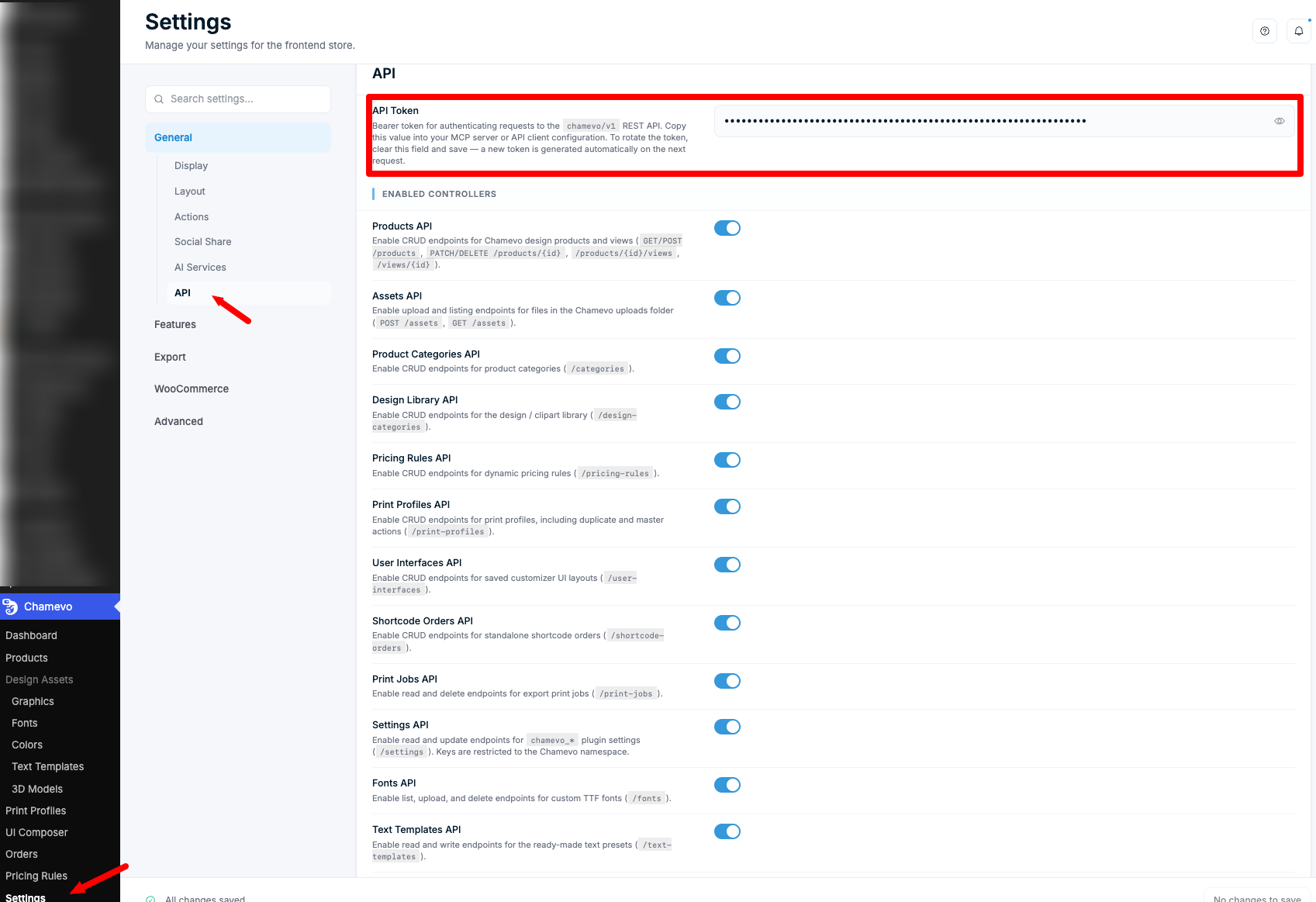
Second, one config block in your assistant. There is nothing to install, because the package is fetched on demand:
{
  "mcpServers": {
    "chamevo": {
      "command": "npx",
      "args": ["-y", "@chamevo/mcp"],
      "env": {
        "CHAMEVO_SITE_URL": "https://your-site.com",
        "CHAMEVO_API_TOKEN": "your_token_here"
      }
    }
  }
}
Restart, and the tools appear. That is the whole setup. It is also worth knowing where things run, because "an AI assistant with access to my store" deserves a clear answer about where the data goes.
Nothing is hosted by us. The server runs on your machine and talks straight to your WordPress site, and the token stays in your own config file.
Frequently asked questions
What is a WooCommerce MCP server?
It is a small program that lets an AI assistant operate a WooCommerce store through a defined set of actions rather than by guessing. The Chamevo version covers 70 actions across products, orders, print profiles, pricing rules, exports, and settings, and runs locally on your own machine.
Do I need to be a developer to use it?
No. Setup is copying a token and pasting one config block into a file. Nothing is installed. If you are comfortable editing a settings file, you are comfortable with this, and the day-to-day use is plain language.
Is it safe to give an AI assistant access to my store?
It depends how you scope it. The token carries full access to your Chamevo installation, so start on staging, switch off the parts of the API you do not need, and begin with read-only requests. Every action is one you could take in the admin yourself, which cuts both ways: that includes deletions.
Which AI assistants does it work with?
Any client that can run a local MCP server, which covers Claude Desktop, Claude Code, Cursor, Windsurf, VS Code in Copilot agent mode, Zed, Continue, Cline, Gemini CLI, and LibreChat. ChatGPT is the exception, since it connects only to remote servers and needs a bridge in front.
Will it change what my customers see?
No. This is back-office work. Your product pages and the customizer your customers use are untouched.
Does it cost extra?
The server itself is free and MIT-licensed on npm, and the API it connects to is included on every Chamevo plan, Starter upwards. All you need is a running WordPress site with Chamevo active and an API token. The one thing to watch is that print files generated through it count against your plan's monthly order quota, the same as exports run from the admin.
Where to start
The honest pitch for the WooCommerce MCP server is not that it transforms your business. It is that a specific category of work, repetitive, mechanical, and easy to postpone, stops needing your attention.
If you try one thing, make it the morning export run. It is the clearest win, it is low risk, and you will know within a day whether the rest is worth exploring. From there, the audit jobs tend to be the surprise: the print profile comparison and the pricing check are valuable precisely because nobody ever gets round to them.
Three things to keep in mind. Start on staging. Switch off the parts of the API you do not need. Treat the token like the admin credential it is.
The package is on npm as @chamevo/mcp, with full setup instructions and the complete API reference on GitHub.
Not running Chamevo yet? Start with the WooCommerce product customizer, which is what all of this is automating. There is a 14-day free trial, the same plugin covers WordPress sites without WooCommerce, and if you are weighing up the options our guide to WooCommerce product customizer plugins is the place to begin.