7 customizable product mistakes that kill your sales
These are the seven most common customizable products mistakes we see merchants make, and how to fix each one. Whether you’re selling custom apparel, personalized gifts, phone cases, or signs, these product customization setup issues apply across the board.
 Martin Frank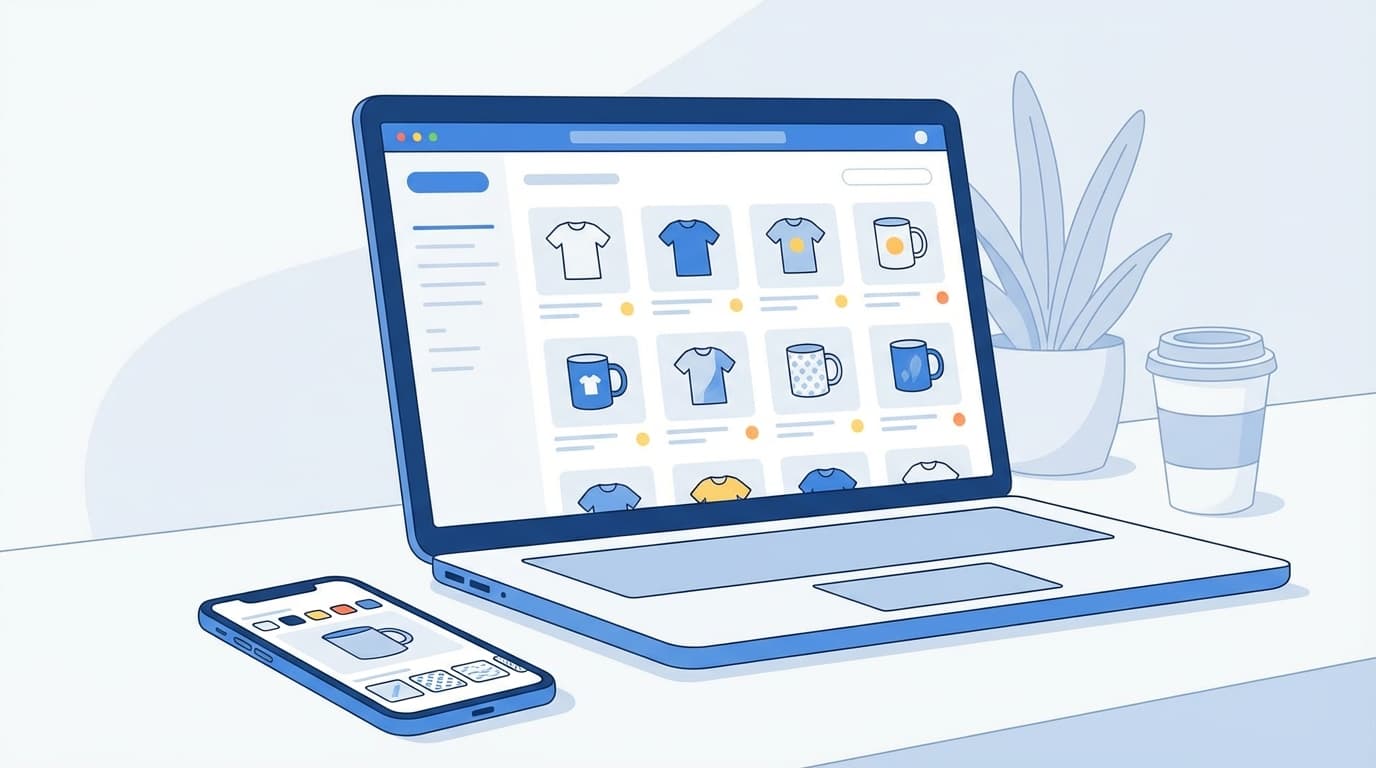
These are the seven most common customizable products mistakes we see merchants make, and how to fix each one. Whether you’re selling custom apparel, personalized gifts, phone cases, or signs, these product customization setup issues apply across the board.
1. Your product customizer looks like a foreign widget
Most product customization apps take a one-size-fits-all approach. They build a single generic tool and deploy it across every e-commerce platform. The result is a customizer that opens in a pop-up, redirects to an external page, or simply looks nothing like your online store.
Customers notice the disconnect immediately. When the design experience has different fonts, a different layout, and different interaction patterns than the rest of your store, trust drops. And trust is everything when you’re asking someone to design a product they can’t see in person before buying.
This problem compounds on mobile, where over 73% of e-commerce sales now happen. Many customizers that look acceptable on desktop become unusable on a phone screen, with tiny buttons, awkward text inputs, and design tools that fight the user instead of helping them.
How to fix it: Choose a product customizer that’s built specifically for your platform and integrates directly into your product page. The customizer should respect your theme’s design, load on the product page itself (not in a pop-up or redirect), and work seamlessly on mobile. If you’re on Shopify, the right Shopify product customizer setup starts with a dedicated Shopify app rather than a generic cross-platform tool. WooCommerce merchants should look for a dedicated WordPress plugin with the same native approach. Test on a phone first. If the customizer doesn’t work smoothly there, most of your customers will never use it.
2. Missing print setup is the costliest product customization mistake
This is the mistake that hurts twice: once when you spend hours fixing files, and again when a customer receives a product with white edges, cut-off text, or blurry images.
Many merchants skip proper print configuration entirely. They set up a product customizer, take orders, and then manually adjust every single file in Photoshop before sending it to production. No bleeds defined. No safety zones configured. No resolution requirements set. That approach works at five orders a day. At 50, it’s a full-time job. At 100, it’s impossible.
The most common print setup mistakes:
- No bleed area: Prints need at least 3 mm (0.125″) of bleed to avoid white edges when trimmed. Without it, every cut that’s even slightly off produces a visible border.
- Low resolution files: Customer uploads at 72 DPI look fine on screen but print blurry. You need 300 DPI minimum for detail products like phone cases and stationery.
- Missing safety zones: Text and important design elements placed too close to the trim edge get cut off in production.
- Wrong color profiles: Not configuring proper color output leads to prints that don’t match what customers designed on screen.
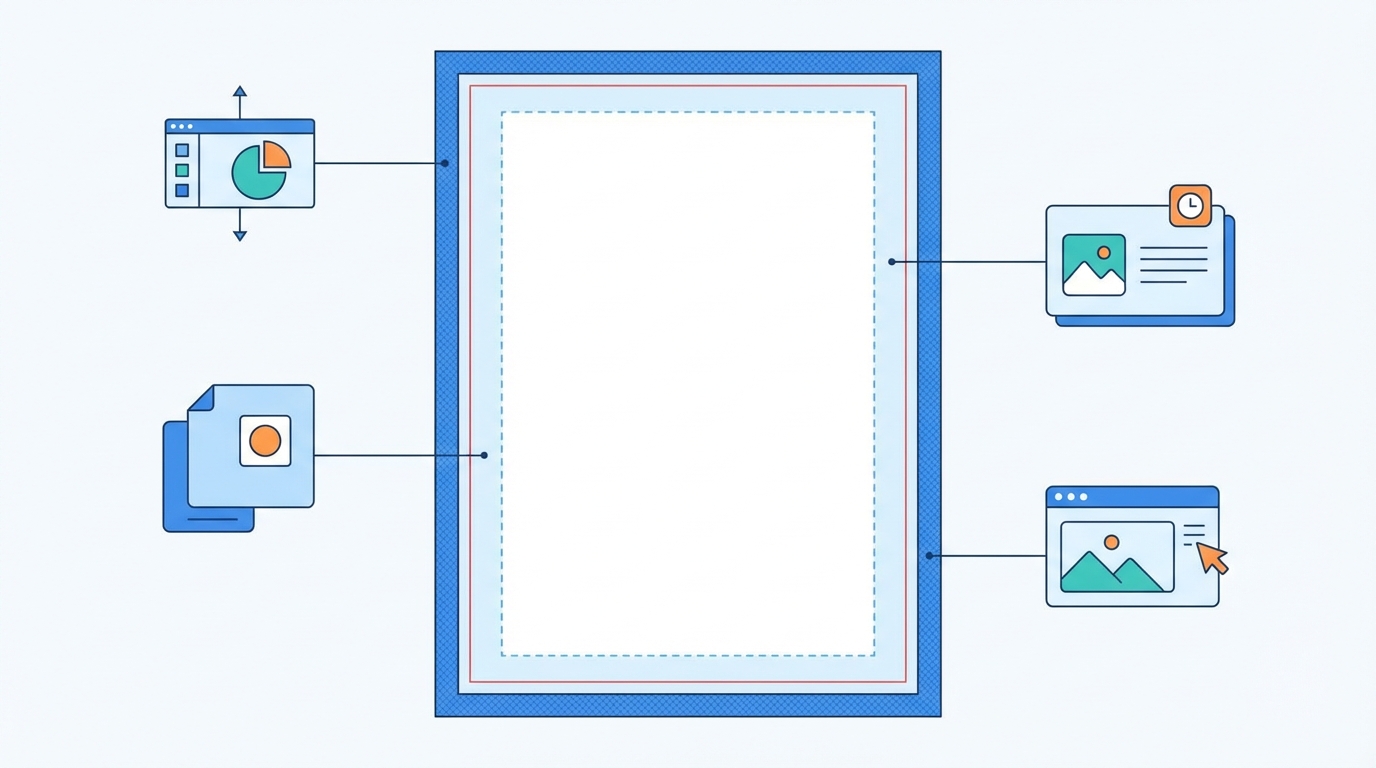
How to fix it: Configure your print-ready file export correctly from day one. Set proper bleeds that match your production specs. Enforce minimum resolution requirements. Define safety zones that keep important elements away from trim edges. Then use a customizer that generates production files automatically. The 30 minutes you spend on proper print setup saves hours of manual file fixing on every single order.
3. Too many options means more abandoned carts
Offering 50 fonts, unlimited color combinations, and complex layer controls sounds generous. In practice, it overwhelms most customers and drives them away.
Decision fatigue is real. The average shopper spends just 20 to 30 seconds interacting with a product customizer. That’s your entire window to convert them. If they land on a blank canvas with dozens of tools they don’t understand, they leave. Reducing choices to a curated set can increase conversions by 10 to 15%.
Most customers want simple, guided customization: add their name, pick a color, upload a photo. Power users who want full design control exist, but they’re the minority. Design your customization experience for the 80%, not the 20%.
How to fix it: Start with the three to five customization options your customers actually use. Make the most common choices dead simple. If most of your customers just want to add a name and pick a color, make those two actions front and center. Hide advanced tools behind an “advanced options” toggle for the power users who want them. You can always add more options later, but you can’t un-confuse a frustrated customer who’s already left your store.
4. Sloppy product customization setup shows
The product setup in your customizer’s backend is where the real work happens, and it’s where most merchants cut corners. Every shortcut you take here directly affects what customers see and what your production team receives.
The most common backend setup mistakes:
- Low-quality or inaccurate product images: Customers design on what they see. If the base image is blurry, outdated, or doesn’t match the actual product, the real-time preview feels wrong and customers lose confidence.
- Poorly defined print areas: When print zones don’t match the actual printable surface, designs look perfect in the preview but get cut off or misplaced in production. This leads to reprints, returns, and frustrated customers.
- Missing design boundaries: Without alignment guides, snap zones, or positioning constraints, customers place elements wherever they want, including areas that can’t physically be printed.
- No templates or starting designs: Dropping customers into a blank canvas with zero guidance freezes most people. A placeholder design or template gives them a starting point and shows them what’s possible.
- Ignoring additional product views: If your product has a customizable back, sleeve, collar, or other areas, setting up only the front view means you’re either limiting what customers can do or creating confusion about what they’ll receive.
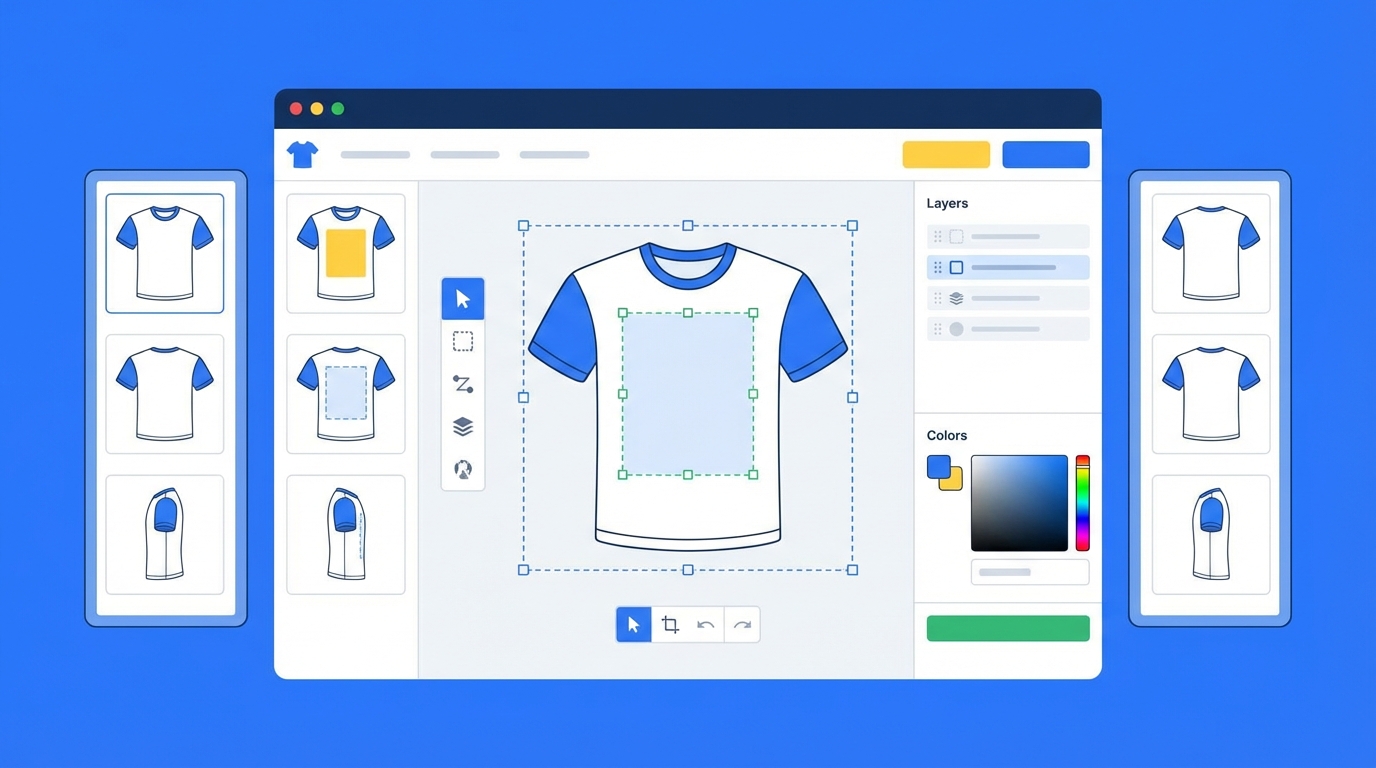
How to fix it: Invest the time in proper product setup. Use high-quality, accurate product images. Define print areas that exactly match your production specs. Add placeholder designs or templates so customers have a starting point. Set up all customizable views. Think of product setup as designing the customer’s experience, not just filling in fields. A well-configured product takes 30 to 60 minutes upfront but saves hours of support tickets and reprints.
5. You never tested the customer experience
Many merchants configure their customizable product and publish it immediately, without ever going through the full customer journey themselves. The issues only surface once real customers start using it.
Problems that only appear when you actually test:
- Mobile usability gaps: Buttons too small to tap, text inputs that are awkward to use, design tools cramped on a phone screen. With 70 to 80% of traffic on mobile, this is where most of your customers will be.
- Confusing flow: Customers don’t know where to start, what’s required versus optional, or how to finish and add to cart. Cart abandonment spikes when the path from customization to checkout isn’t clear.
- Missing instructions: No guidance text, tooltips, or labels explaining what each customization option does.
- Broken edge cases: What happens when a customer uploads a tiny image? Types 200 characters into a name field? Leaves a required field blank?
- Slow load times: Heavy product images or too many design elements making the customizer sluggish on slower connections.
How to fix it: Before you publish any customizable product, go through the entire experience yourself on your phone first, then on desktop. Place a test order with a real customization. Then have someone who has never seen the product try it. Watch where they hesitate, get confused, or give up. Fix those friction points before a single real customer encounters them. This is one of the most overlooked customizable products mistakes, and one of the easiest to prevent.
6. No guardrails on customer uploads
Even with a well-tested customization experience, there’s one area where merchants consistently drop the ball. Most customizable products involve image uploads, but many merchants put zero constraints on what customers can submit. No resolution checks, no format limits, no guidance on what makes a good upload.
The result is predictable. Customers upload 72 DPI screenshots from their phone and expect crisp, print-ready results. The preview looks acceptable at screen size. The printed product looks terrible. Then comes the return request, the negative review, and a customer who won’t buy from you again.
This applies to every product type that accepts customer images: custom apparel, phone cases, mugs and drinkware, signs, canvas, stationery. If customers can upload images, you need guardrails.
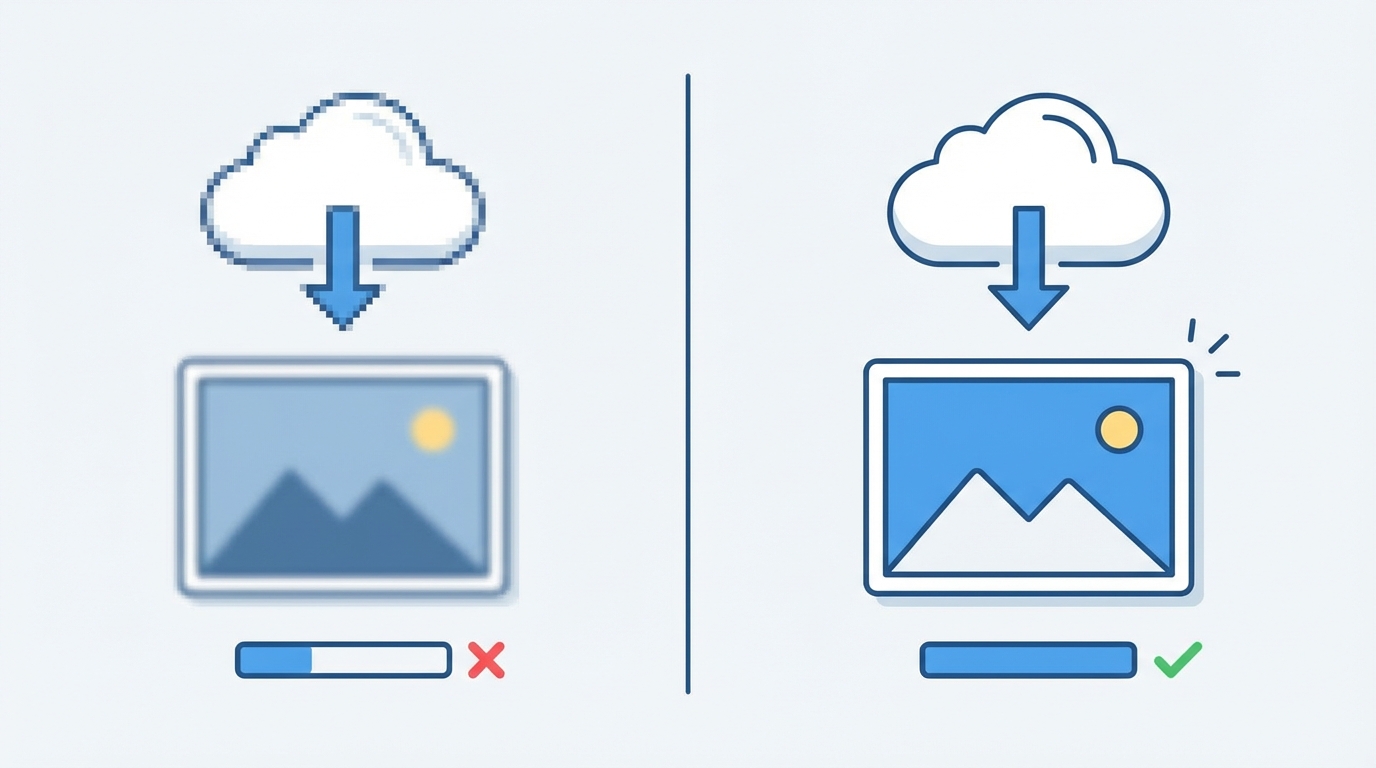
How to fix it: Set minimum resolution requirements based on your print area size. Show customers a clear warning when their image won’t print well, before they check out, not after they receive a blurry product. Provide simple upload guidance directly in the customizer, something like “best results with images 2000×2000 pixels or larger.” If your customizer supports AI-powered image upscaling, enable it as a fallback to rescue borderline uploads.
7. Flat pricing leaves money on the table
Charging the same price whether a customer adds a simple name or uploads multiple images across several print areas with premium fonts and effects is a lose-lose.
Simple customizations feel overpriced. A customer who just wants their name on a mug doesn’t want to pay the same premium as someone ordering a full-wrap photo print. At the same time, complex customizations are underpriced. The customer adding five images, custom text on three sides, and premium effects gets all that extra value for free, while your production costs are significantly higher.
Dynamic pricing solves both problems:
- Base personalization (just a name or simple text) stays affordable and accessible
- Extra print areas or sides carry an additional cost
- Premium design elements, fonts, or effects include a surcharge
- Multiple images or complex layouts scale the price accordingly
This applies to every type of customizable product, from apparel to drinkware to signage. A single-color name on a t-shirt is fundamentally different from a full-wrap photo print on a tumbler, and your pricing should reflect that.
Additionally, dynamic pricing creates natural upsell opportunities. When customers see “Add back print +$5,” many will upgrade. That’s revenue you’re currently leaving on the table with flat pricing.
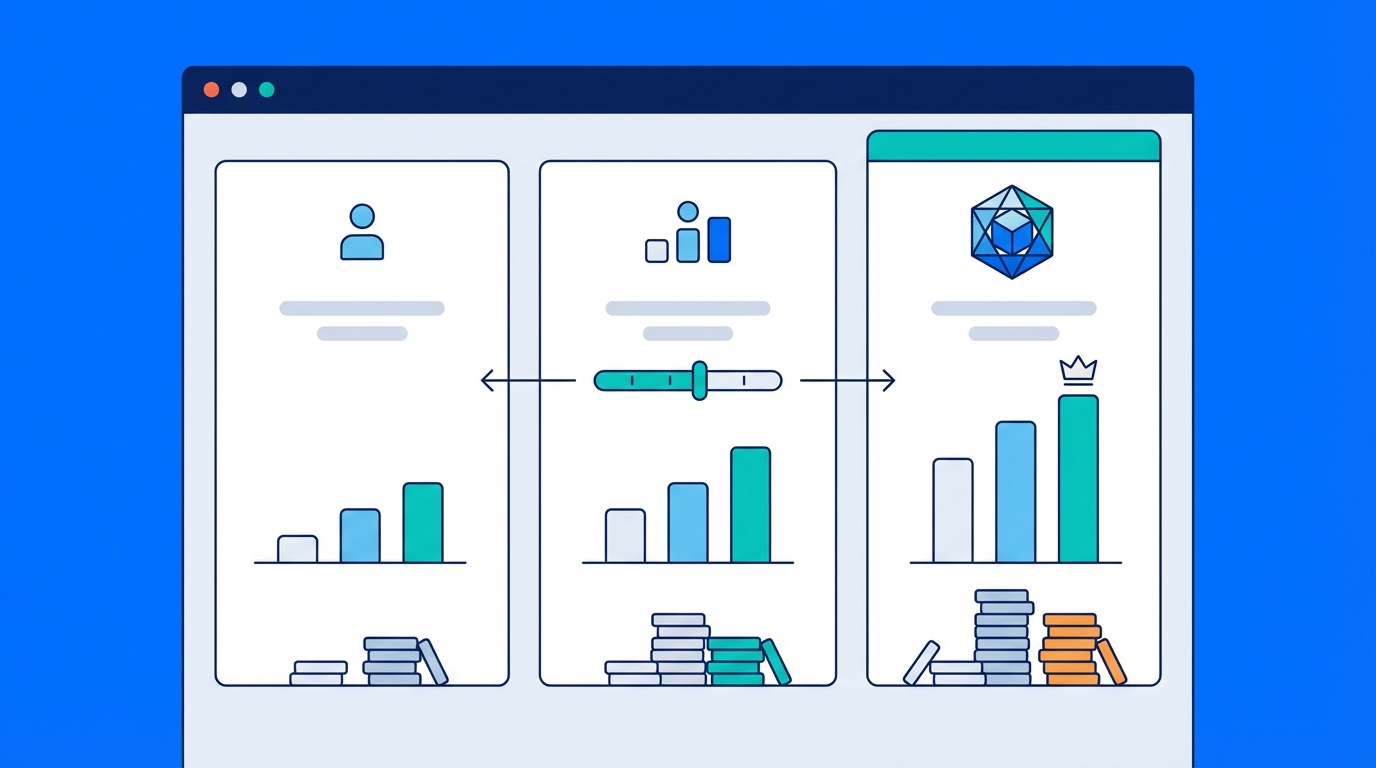
How to fix it: Set up pricing rules that reflect the actual complexity and production cost of each customization. Keep base personalization affordable, and let customers choose to add premium options at a fair price. Most merchants see a measurable increase in average order value when they switch from flat to dynamic pricing.
Avoid these customizable product mistakes from day one
These seven customizable products mistakes all share one root cause: treating product customization as an afterthought instead of a core part of the buying experience. The merchants who sell customizable products successfully invest in proper product customization setup, choose tools built for the job, and think about the customer journey from the first click to the delivered product.
The good news is that every one of these mistakes is fixable. Start with the ones that affect you most, whether that’s cleaning up your print setup, simplifying your customization options, or finally testing on mobile.
If you’re looking for a Shopify product customizer that handles storefront integration, print-ready file export, upload guardrails, and dynamic pricing out of the box, try Chamevo free for 14 days and see how it works with your store.